zsh-syntax-highlighting Review for Zsh Users
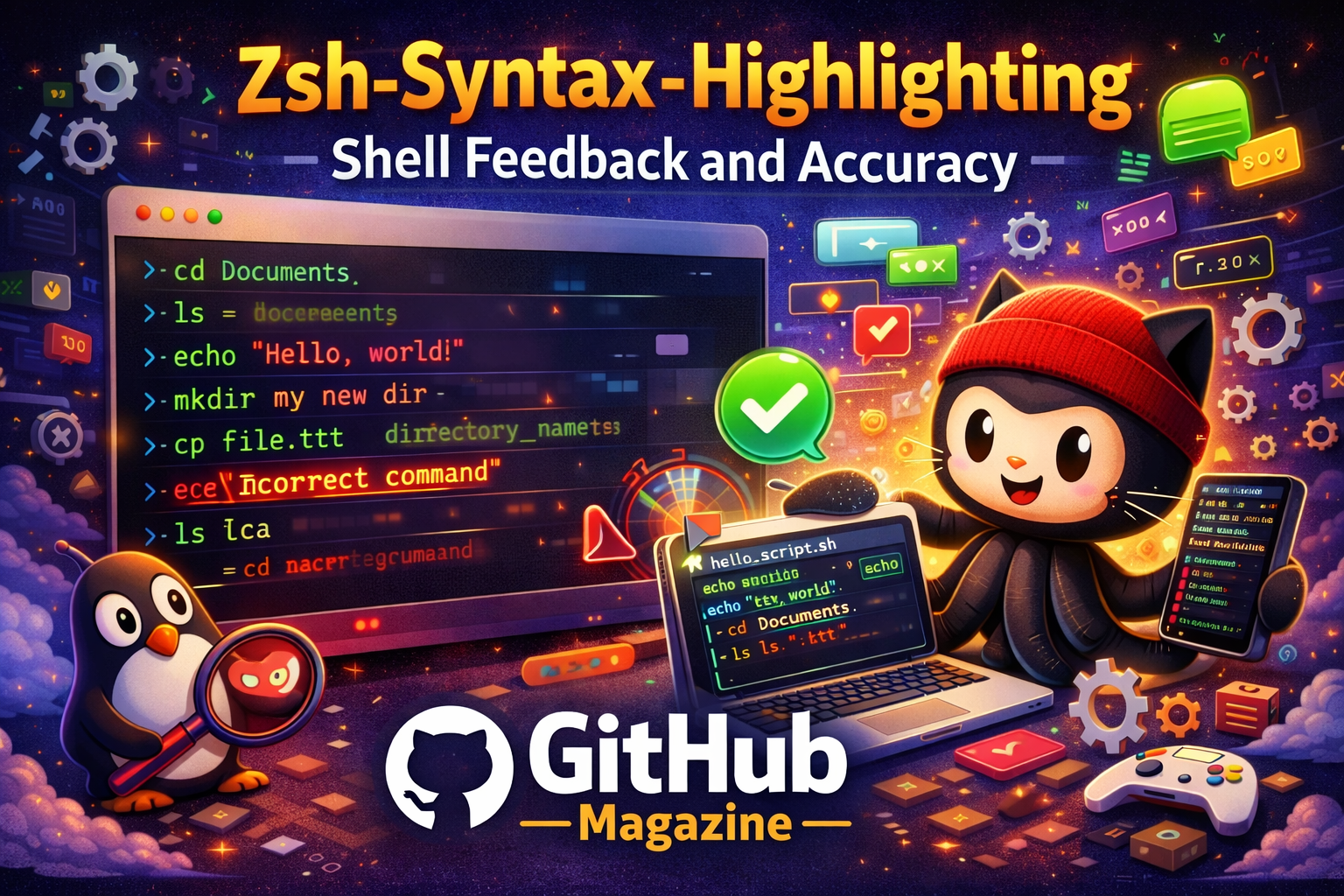
I have spent years inside terminal windows, writing commands faster than I can sometimes think, trusting muscle memory more than documentation. If you use Zsh daily, you already know that one misplaced flag or incorrect path can undo careful work in seconds. zsh-syntax-highlighting exists to reduce that risk. It brings real-time visual feedback to the Z shell, coloring commands as they are typed so users can detect mistakes before execution. Within moments of installation, the difference is immediate: valid commands glow confidently, typos stand out, and file paths reveal themselves visually before you press Enter.
For developers, DevOps engineers, and system administrators, this plugin is more than aesthetic enhancement. It changes how the terminal behaves. Instead of waiting for the shell to respond after execution, the shell responds during composition. That shift reduces cognitive strain and increases confidence. In this review for GitHubMagazine.com, I examine how zsh-syntax-highlighting works, why it has become essential in modern terminal setups, and whether it deserves a permanent place in your development workflow.
The Evolution of Shell Usability
When Zsh first appeared in 1990, it extended the Bourne shell with advanced features such as programmable completion and improved globbing. Yet it remained visually minimal. For decades, the command line was monochrome and unforgiving. Users typed first and discovered mistakes later.
As development environments evolved, editors and IDEs introduced syntax highlighting to help programmers understand code structure instantly. That visual feedback became standard. Meanwhile, many shells lagged behind. Fish shell integrated built-in syntax highlighting, but Zsh relied on its extensibility model. That extensibility allowed the community to fill the gap.
zsh-syntax-highlighting emerged as an open source plugin that leverages Zsh’s line editor, known as ZLE. Rather than modifying Zsh’s core, it attaches itself to the command buffer and analyzes input in real time. This design respects Zsh’s modular philosophy while expanding its capabilities significantly.
How zsh-syntax-highlighting Works Under the Hood
At its core, zsh-syntax-highlighting intercepts the command line buffer whenever it changes. Each keystroke triggers a parsing pass. The plugin categorizes tokens as commands, arguments, options, strings, paths, or unknown elements.
If a command exists in the system’s PATH, it is styled as valid. If not, it is marked distinctly, often in red, signaling a potential typo. Paths can be evaluated for existence, giving immediate visual cues about whether a file or directory is accessible.
This functionality depends on hooking into ZLE widgets. In older Zsh versions, the plugin wraps existing widgets. In newer versions, it uses dedicated hook interfaces. Because of this integration method, it must be sourced at the end of the .zshrc configuration file. Loading it earlier can prevent it from wrapping all relevant widgets.
The architecture remains lightweight. No external daemon runs in the background. All parsing occurs within the shell session, making performance overhead minimal for most workflows.
Installation and Setup Experience
Installing zsh-syntax-highlighting is straightforward. Most users choose one of three paths: manual cloning, plugin manager integration, or framework-based setup such as Oh My Zsh.
| Installation Method | Workflow | Ideal For |
|---|---|---|
| Manual Clone | Clone repository and source script in .zshrc | Minimalist setups |
| Oh My Zsh | Add to custom plugins directory and enable in config | Framework users |
| Plugin Managers | Declare plugin in Zinit, Antigen, or Zplug | Advanced configurations |
In my own setup, I prefer manual cloning. It provides transparency and control. After cloning the repository, adding a single source line at the end of .zshrc activates the plugin immediately. Restarting the terminal reveals the transformation.
Configuration is equally flexible. Styles are defined through associative arrays, allowing developers to assign colors and attributes such as bold or underline. Accessibility-minded users can choose high-contrast themes, while others may align colors with their existing terminal palette.
Feature Review: What Makes It Stand Out
The plugin’s strength lies in clarity. It does not attempt to predict your command. It simply evaluates it.
| Feature | Description | Practical Benefit |
|---|---|---|
| Command Validation | Colors recognized commands differently from invalid ones | Catches typos instantly |
| Path Checking | Differentiates existing and non-existing paths | Prevents file operation errors |
| Argument Highlighting | Separates flags from values visually | Improves readability |
| Customizable Styles | User-defined color schemes | Adapts to personal workflow |
The path highlighting feature is particularly valuable. When navigating deeply nested directories or referencing long file names, visual confirmation prevents accidental operations on incorrect paths.
Another standout element is compatibility. zsh-syntax-highlighting works seamlessly with autosuggestion plugins. When combined, suggestions appear subtly, and syntax highlighting clarifies structure, creating a layered feedback system.
Performance Considerations
One concern users often raise is whether real-time highlighting slows down the shell. In practice, performance remains stable in standard interactive sessions. Because parsing happens locally and incrementally, the overhead is rarely noticeable.
However, extremely long pasted commands or complex constructs may introduce slight redraw delays. These cases are edge scenarios rather than daily occurrences. For most development tasks, the plugin feels native.
Its lightweight nature reinforces a key principle in open source tool design: enhancements should not compromise responsiveness.
Usability and Cognitive Impact
Terminal work demands concentration. Commands can span dozens of characters, combining pipes, redirects, subshells, and environment variables. Without visual segmentation, comprehension relies entirely on mental parsing.
zsh-syntax-highlighting reduces that burden. When commands are visually structured, the brain processes them faster. Valid commands appear trustworthy. Suspicious tokens demand attention.
Human-computer interaction research consistently emphasizes immediate feedback as a cornerstone of usability. When systems respond instantly to user input, error rates decrease and confidence rises. This plugin embodies that principle within the command line.
In my workflow, I have caught numerous minor mistakes before execution. A missing dash, a misspelled binary name, an incorrect directory path. Each correction saved time and prevented frustration.
Comparison with Built-In Highlighting in Other Shells
Fish shell integrates syntax highlighting natively. Bash does not. Zsh relies on community plugins.
The distinction matters philosophically. Fish enforces a curated experience. Zsh offers a flexible ecosystem. zsh-syntax-highlighting reflects that ecosystem’s strength.
Where Fish provides limited customization, Zsh allows deep styling adjustments. Users can modify colors per token type, adapt themes, and integrate with other tools. This flexibility appeals to developers who enjoy tailoring their environment precisely.
The plugin’s modular nature also means it can evolve independently of Zsh releases. Updates occur through community collaboration rather than shell core updates.
Integration with Modern Developer Workflows
In contemporary DevOps environments, terminals interact with Git repositories, Docker containers, Kubernetes clusters, and cloud CLI tools. Commands grow increasingly complex.
zsh-syntax-highlighting becomes particularly valuable when composing multi-flag commands. For example, distinguishing between a valid Git subcommand and a misspelled one prevents workflow interruptions. When managing infrastructure via CLI tools, catching an incorrect environment variable before execution can prevent unintended deployments.
Combined with version control aliases and custom scripts, the plugin enhances visibility across layers of abstraction.
GitHubMagazine.com focuses on tools that empower developers without overwhelming them. zsh-syntax-highlighting aligns perfectly with that philosophy. It respects the command line’s simplicity while elevating its usability.
Customization Best Practices
To maximize value, load the plugin last in your configuration file. This ensures it wraps all existing widgets.
Choose color schemes that contrast clearly with your background. Avoid subtle tones that blend into dark themes. High contrast improves recognition speed.
Pair the plugin with autosuggestions for predictive guidance and history search enhancements for recall efficiency.
Regularly update the repository to benefit from bug fixes and expanded highlighter modules. Because the project is community-driven, improvements reflect real-world usage patterns.
Takeaways
- zsh-syntax-highlighting provides real-time visual feedback in the Z shell.
- It hooks into ZLE to analyze commands during composition.
- Installation is simple across manual and framework-based setups.
- Customizable styling supports accessibility and personalization.
- Performance impact is minimal in standard workflows.
- The plugin reduces cognitive load and error frequency.
- It integrates seamlessly into modern DevOps and development environments.
Conclusion
After integrating zsh-syntax-highlighting into my daily workflow, I find it difficult to imagine returning to a plain terminal. What once felt neutral now feels incomplete without color cues guiding my input. This plugin does not change how commands execute. It changes how they are understood before execution.
That distinction is powerful. In high-stakes development and system administration environments, preventing mistakes matters as much as fixing them. zsh-syntax-highlighting supports prevention through visibility.
For readers of GitHubMagazine.com who prioritize efficiency, customization, and open source craftsmanship, this plugin stands out as a practical enhancement rather than a novelty. It respects the Unix philosophy of modular design while modernizing the command line experience. In the evolving landscape of developer tooling, sometimes the smallest visual improvements deliver the most meaningful impact.
FAQs
What is zsh-syntax-highlighting used for?
It adds real-time syntax coloring to Zsh commands, helping users detect errors and understand structure before execution.
Does it work with Oh My Zsh?
Yes. It can be installed as a custom plugin within Oh My Zsh and enabled through the configuration file.
Will it slow down my terminal?
For typical interactive use, performance impact is minimal and rarely noticeable.
Can I customize the colors?
Yes. Styles are defined through configuration variables and can be tailored to match any terminal theme.
Is it compatible with other Zsh plugins?
Yes. It works well alongside autosuggestions, completion frameworks, and other productivity enhancements.