
How to Encrypt Email in Outlook Step-by-Step
I often see people assume that email is inherently private, but the reality is quite different. Email travels across multiple servers before reaching its destination, making it vulnerable to interception. Encrypting email in Outlook is one of the most reliable ways to ensure that only the intended recipient can read your message. Within the first few steps of using Outlook, encryption can be enabled through built-in tools like Microsoft 365 Message Encryption or S/MIME, both designed to protect sensitive communication.
As I explore this topic, it becomes clear that Outlook has simplified what used to be a highly technical process. Whether someone is sending confidential business documents, personal financial details, or internal company discussions, encryption ensures that the content remains secure even if intercepted. Outlook’s encryption tools cater to both everyday users and enterprise environments, offering flexibility without compromising security.
I find that understanding how encryption works in Outlook is not just about following steps. It is about recognizing the risks of unprotected communication and taking control of digital privacy. With cyber threats continuing to rise, learning how to encrypt emails is no longer optional. It is a necessary skill for anyone who relies on email for communication.
Why Email Encryption Matters More Than Ever
I view email encryption as a response to the growing vulnerabilities in digital communication. Cyberattacks are no longer rare incidents but ongoing threats affecting individuals and organizations alike. Every unencrypted email represents a potential point of exposure, especially when it contains sensitive information.
Encryption transforms readable text into coded data that can only be accessed with a specific key. This ensures that even if a message is intercepted, it remains unreadable. I see this as particularly important in industries such as healthcare, finance, and law, where confidentiality is critical. Regulations and compliance requirements have further reinforced the need for secure communication.
Bruce Schneier, a well-known security technologist, once emphasized that encryption is essential for maintaining trust in digital systems. I agree with this perspective because trust in communication depends on the assurance that information remains private. Outlook’s integration of encryption reflects this shift toward prioritizing security as a standard feature rather than an optional add-on.
Understanding Outlook’s Encryption Options
I notice that many users are unsure about which encryption method to choose in Outlook. The platform offers two primary options, S/MIME and Microsoft 365 Message Encryption, each designed for different needs and levels of technical expertise.
S/MIME relies on digital certificates issued by trusted authorities. Both the sender and recipient must have these certificates installed, which makes the setup more complex but provides a high level of security. This method is commonly used in enterprise environments where IT teams manage certificates and configurations.
Microsoft 365 Message Encryption, on the other hand, is designed for simplicity. It does not require certificates and allows users to send encrypted emails to anyone, regardless of their email provider. I find this approach particularly useful for everyday users who need secure communication without technical complexity.
| Feature | S/MIME | Microsoft 365 Message Encryption |
|---|---|---|
| Requires Certificates | Yes | No |
| Best For | Enterprise environments | General users |
| Ease of Setup | Complex | Simple |
| Compatibility | Limited to configured users | Works with all recipients |
| Security Level | High | High |
Alex Weinert, a Microsoft security expert, has pointed out that usability is often the biggest barrier to adopting encryption. I see Outlook’s design as an effort to remove that barrier.
Step-by-Step Guide to Encrypting Email in Outlook
I approach encrypting email in Outlook as a practical process that becomes intuitive once understood. The steps vary depending on the encryption method used, but both options are accessible within the Outlook interface.
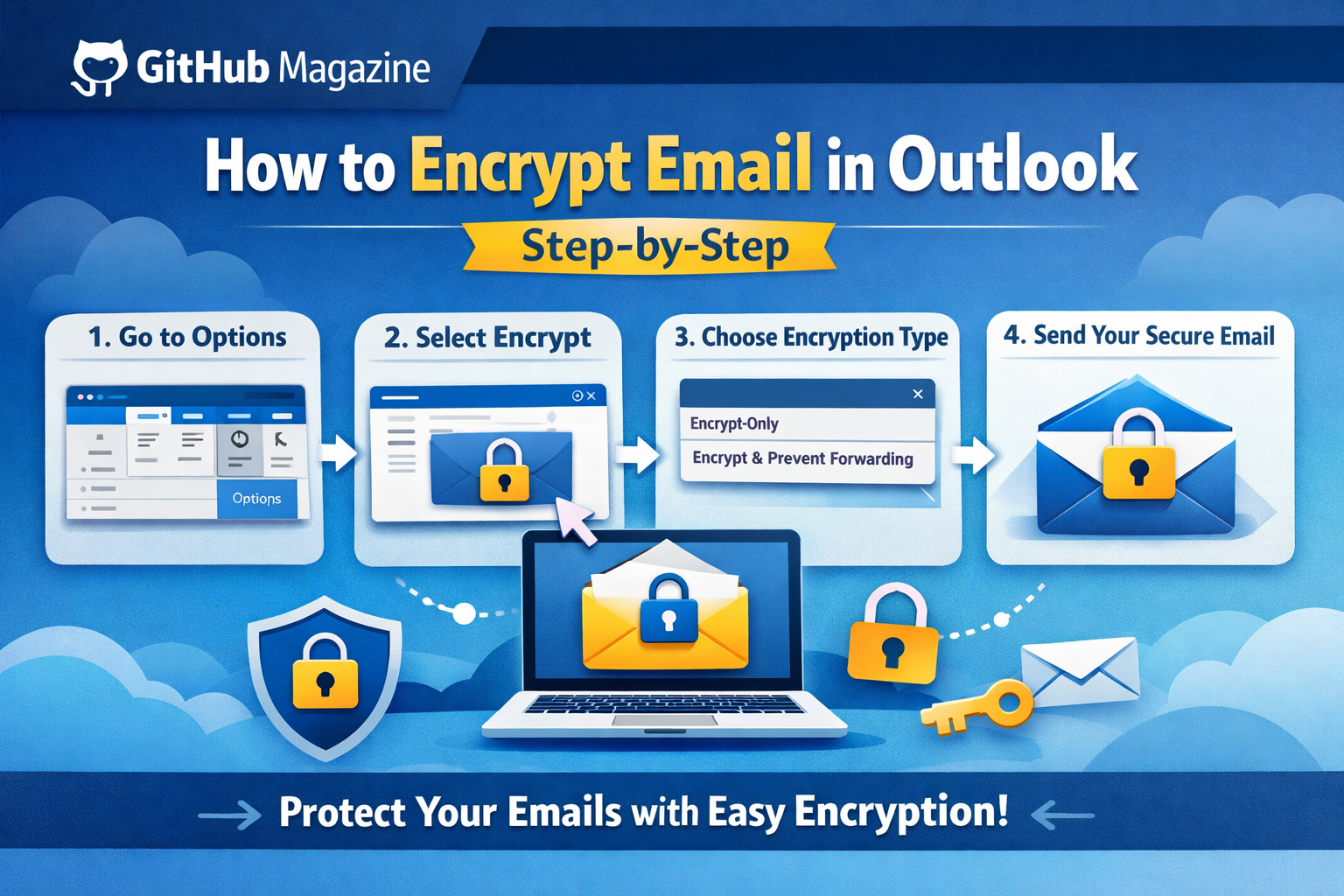
For Microsoft 365 Message Encryption, the process is straightforward. I open a new email, navigate to the Options tab, and select the Encrypt button. From there, I choose the desired level of encryption, such as Encrypt Only or Do Not Forward, and send the message as usual. The recipient receives instructions to access the secure content.
For S/MIME encryption, the process begins with obtaining a digital certificate. After installing the certificate, I enable encryption in Outlook’s Trust Center settings. Once configured, emails can be encrypted automatically before sending.
I find that the simplicity of these steps reflects how far email security has evolved. What once required specialized knowledge is now integrated into everyday tools.
Encryption Levels and Their Practical Use
I consider encryption levels to be one of the most useful features in Outlook. They allow users to tailor security based on the sensitivity of the message.
Basic encryption ensures that the message content is protected during transmission. More advanced options, such as Do Not Forward, prevent recipients from sharing the email with others. Higher levels of confidentiality restrict actions like copying or printing.
| Level | Description | Typical Use |
|---|---|---|
| Encrypt Only | Secures message content | General communication |
| Do Not Forward | Prevents sharing | Internal discussions |
| Confidential | Restricts access | Sensitive documents |
| Highly Confidential | Maximum control | Executive communication |
I see these options as a way to balance usability with security. Not every message requires the highest level of protection, but having the option is essential.
Real-World Applications of Outlook Encryption
I observe that encryption is widely used across industries where data protection is critical. In healthcare, encrypted emails safeguard patient information. In finance, they protect transactions and sensitive client data. Legal professionals rely on encryption to maintain confidentiality in case-related communication.
Eva Galperin, a cybersecurity expert, has emphasized that secure communication forms the foundation of trust between professionals and their clients. I find this particularly relevant because trust is easily broken when sensitive information is exposed.
Even for individuals, encryption plays a vital role. Sending personal documents, identification details, or private conversations through encrypted channels reduces the risk of identity theft and unauthorized access. I see encryption not just as a professional necessity but as a personal safeguard.
Common Mistakes in Email Encryption
I often notice that users assume encryption alone guarantees complete security. However, mistakes in usage can undermine its effectiveness.
One common issue is sending encrypted emails to the wrong recipient. Encryption protects the content, but it does not prevent human error. Another mistake is failing to manage digital certificates properly in S/MIME, which can lead to decryption issues.
Users also sometimes overlook the fact that subject lines are not always encrypted. This can unintentionally reveal sensitive information. Bruce Schneier’s observation that security is a process resonates strongly here. I believe that understanding how to use encryption correctly is just as important as enabling it.
Comparing Outlook with Other Email Platforms
I find it useful to compare Outlook’s encryption capabilities with other platforms to understand its strengths. While many email services offer basic security, Outlook provides a more comprehensive approach.
| Platform | Encryption Type | Ease of Use | Strength |
|---|---|---|---|
| Outlook | S/MIME, OME | High | Enterprise-ready |
| Gmail | TLS, Confidential Mode | Moderate | Basic protection |
| ProtonMail | End-to-end encryption | High | Privacy-focused |
| Yahoo Mail | TLS | Low | Limited security |
Outlook stands out because of its integration with enterprise systems and flexible encryption options. I see it as a balance between usability and advanced security.
The Technology Behind Outlook Encryption
I find the underlying technology of encryption both fascinating and essential to understand. Outlook uses cryptographic systems that rely on public and private keys. When a message is encrypted, the recipient’s public key is used to secure the content. Only the corresponding private key can decrypt it.
Modern encryption standards, such as AES and RSA, provide strong protection against unauthorized access. These algorithms are designed to withstand even advanced attempts at decryption.
The National Institute of Standards and Technology has highlighted the importance of strong encryption in protecting digital information. I see this as a reminder that encryption is not just a feature but a critical component of modern cybersecurity.
Takeaways
- Outlook provides both simple and advanced encryption methods
- Microsoft 365 Message Encryption is the easiest option for most users
- S/MIME offers higher control but requires certificates
- Encryption levels allow tailored security for different scenarios
- Proper usage is essential to avoid common mistakes
- Encryption protects both personal and professional communication
- Understanding the technology enhances effective use
Conclusion
I believe that encrypting email in Outlook represents a shift toward more responsible digital communication. As threats continue to evolve, relying on unprotected email is no longer practical. Outlook’s encryption tools make it possible for users to secure their messages without needing deep technical expertise.
While the setup may vary depending on the method chosen, the overall process is accessible and effective. Encryption ensures that sensitive information remains private, reinforcing trust in communication. I see it as a necessary step for anyone who values security in their digital interactions.
Ultimately, learning how to encrypt email in Outlook is about more than technology. It is about taking control of privacy in a world where information is constantly at risk.
FAQs
1. Can I encrypt emails in Outlook without a certificate?
Yes, Microsoft 365 Message Encryption allows you to send encrypted emails without needing certificates.
2. Is S/MIME better than Microsoft 365 encryption?
S/MIME offers more control and security but is more complex to set up.
3. Do recipients need Outlook to read encrypted emails?
No, recipients can access encrypted messages through a secure web portal.
4. Are attachments encrypted in Outlook emails?
Yes, attachments are encrypted along with the email content.
5. Does encryption affect email delivery speed?
No, encryption has minimal impact on delivery time.

Related Posts

Advanced Settings Utility Explained
HTTP Status Codes Explained Simply