Taskmgr Shortcut Guide and History
I have pressed Ctrl + Shift + Esc more times than I can count. In moments of panic, when a frozen screen refuses to respond, that simple keyboard combination opens the one tool Windows users trust most: Task Manager. If you are searching for the taskmgr shortcut, the fastest way to open Task Manager directly is Ctrl + Shift + Esc. It works instantly in modern versions of Windows and bypasses menus altogether. An alternative path, Ctrl + Alt + Delete, brings up a security screen where Task Manager is one option.
Yet that small difference between shortcuts reveals a deeper story about how Microsoft designed Windows for security, stability, and speed. Task Manager is not just a troubleshooting utility. It is a window into memory usage, processor load, startup behavior, and application control. Since its introduction in Windows NT in the 1990s, it has evolved from a basic list of processes into a sophisticated performance dashboard.
Today, pressing the taskmgr shortcut is as reflexive as refreshing a webpage. It represents control. It also reflects decades of engineering decisions about how users interact with operating systems. To understand why this shortcut matters, we need to look beyond the keys and into the history of modern computing itself.
The Origin of Task Manager
Task Manager first appeared in Windows NT 4.0 in 1996, a business focused operating system built for stability and network environments. Microsoft introduced it as a way to monitor processes, view performance statistics, and end unresponsive programs. According to Microsoft’s official documentation, Task Manager allows users to “monitor your computer’s performance, view running programs, and end tasks that aren’t responding” (Microsoft Support, n.d.).
Early versions were minimal. Users could see applications and basic system metrics. Over time, Windows 2000 and Windows XP expanded its visibility into services and CPU performance. By the time Windows 7 arrived in 2009, Task Manager had become essential for diagnosing slowdowns and managing startup programs.
The real transformation came with Windows 8 in 2012. Microsoft redesigned Task Manager with a simplified default view for casual users and a detailed performance panel for advanced users. The new design emphasized usability, reflecting broader trends in human computer interaction.
Jakob Nielsen, a usability expert, once wrote, “Accelerators, often called shortcuts, are key to expert user performance” (Nielsen, 1993). The taskmgr shortcut embodies that principle. It empowers experienced users to move quickly without navigating menus.
Understanding the Taskmgr Shortcut
The command most people call the taskmgr shortcut is:
Ctrl + Shift + Esc
Pressing these three keys together launches Task Manager immediately. No intermediate screens appear. It is the fastest and most direct method available in Windows 10 and Windows 11.
There are other ways to open Task Manager:
- Ctrl + Alt + Delete, then select Task Manager
- Right click the taskbar and choose Task Manager
- Press Windows + R and type taskmgr
- Search for Task Manager in the Start menu
Each method serves a different context. The Ctrl + Alt + Delete route was originally designed as a secure attention sequence, ensuring that only the operating system could respond. IBM engineer David Bradley, who helped design the key combination, later remarked, “I may have invented it, but Bill Gates made it famous” (BBC News, 2013). That fame extended to Task Manager, which became one of the most selected options on that security screen.
The direct Ctrl + Shift + Esc shortcut bypasses that step, offering speed without compromising security in modern systems.
Shortcut Comparison Table
| Method | Speed | Security Context | Best For |
|---|---|---|---|
| Ctrl + Shift + Esc | Instant | Direct launch | Power users, emergencies |
| Ctrl + Alt + Delete → Task Manager | Two steps | Secure attention sequence | System lockups |
| Windows + R → taskmgr | Moderate | Command line access | Advanced troubleshooting |
| Taskbar right click | Moderate | GUI navigation | Casual users |
The table illustrates how the direct shortcut prioritizes efficiency, while other methods emphasize layered access.
Why Keyboard Shortcuts Matter
Keyboard shortcuts reduce cognitive friction. Instead of moving a cursor, scanning menus, and clicking, users rely on muscle memory. Research from the Nielsen Norman Group has consistently emphasized the productivity benefits of accelerators for experienced users (Nielsen, 1993).
In enterprise environments, seconds matter. When a workstation freezes during a presentation or critical workflow, the ability to summon Task Manager instantly can prevent lost data or downtime.
Bill Gates himself once reflected on the complexity of Ctrl + Alt + Delete, saying, “If I could make one small edit, I would make that a single key” (CNN, 2013). His comment highlights how design tradeoffs shape everyday computing experiences.
Ctrl + Shift + Esc effectively became that simplified pathway for Task Manager. It removed the need for three separate key presses involving both hands in awkward positions. Instead, users could reach the function quickly and directly.
Over time, this shortcut became embedded in workplace culture. IT support professionals routinely instruct users to press it when diagnosing performance issues.
Inside Task Manager Today
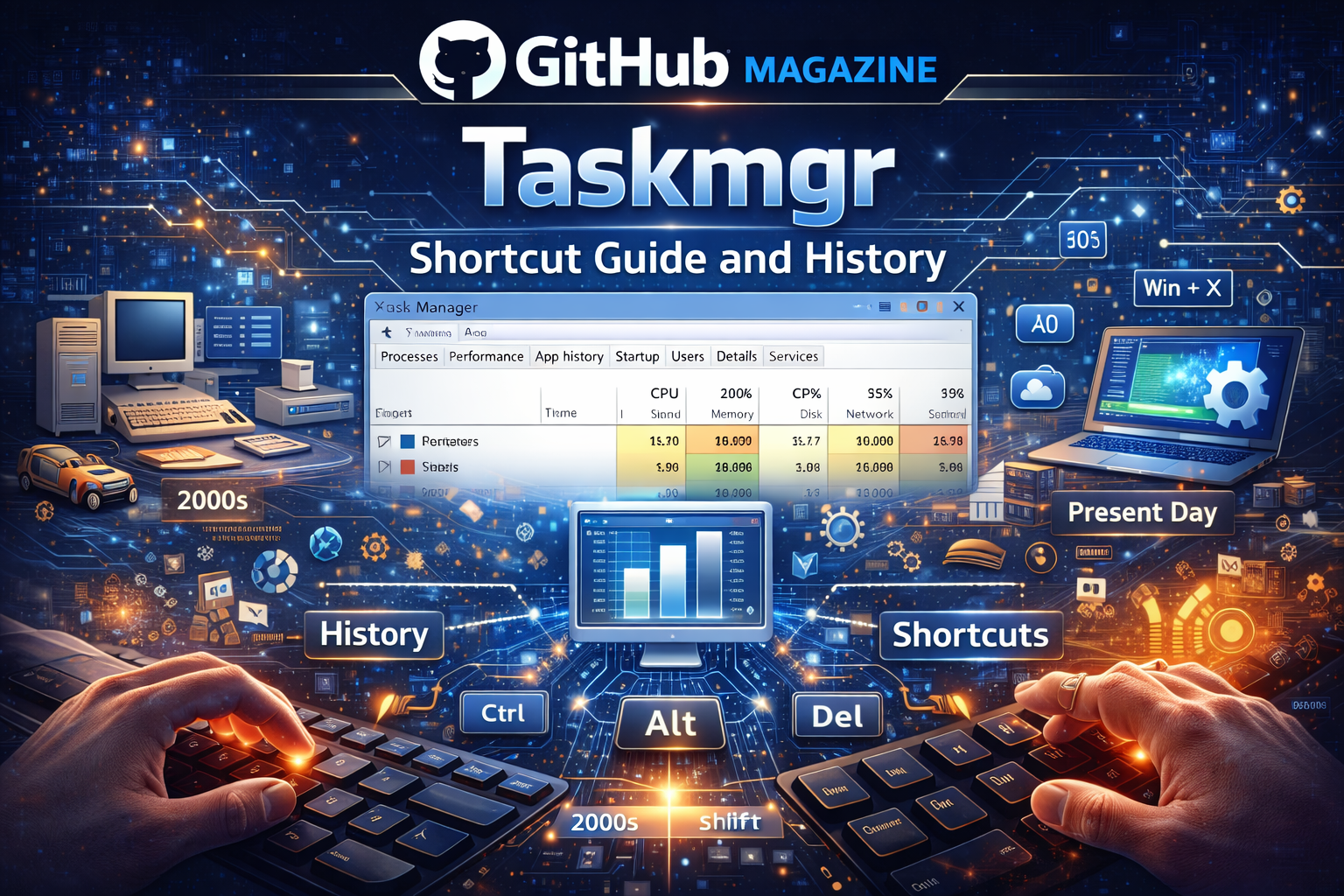
Modern Task Manager in Windows 11 is divided into several tabs:
- Processes
- Performance
- App history
- Startup
- Users
- Details
- Services
Each tab provides increasing levels of insight. The Processes tab shows real time CPU, memory, disk, and network usage. The Performance tab displays graphs that help users identify bottlenecks. Startup management, introduced prominently in Windows 8, allows users to disable applications that slow boot time.
Microsoft describes Task Manager as a way to “identify applications that are consuming resources” (Microsoft Support, n.d.). This diagnostic capacity is crucial in a world where dozens of background processes run simultaneously.
For developers, Task Manager can reveal memory leaks. For gamers, it can show GPU utilization. For office workers, it can end a frozen spreadsheet before a meeting derails.
Evolution Timeline of Task Manager
| Year | Windows Version | Key Task Manager Feature |
|---|---|---|
| 1996 | Windows NT 4.0 | Initial process monitoring |
| 2001 | Windows XP | Expanded performance metrics |
| 2009 | Windows 7 | Improved stability tracking |
| 2012 | Windows 8 | Major redesign, startup control |
| 2021 | Windows 11 | Modern UI, efficiency mode |
The redesign in Windows 8 marked a philosophical shift. Instead of hiding complexity, Microsoft structured information hierarchically. Casual users see simplified views, while advanced users can expand to detailed metrics.
Task Manager and System Stability
Task Manager often functions as the last line of defense against unresponsive software. When an application stops responding, Windows may display a prompt to close it. However, Task Manager provides granular control. Users can force termination, check resource consumption, or identify background processes.
In the early days of Windows, crashes were common. Blue screens were part of computing folklore. Over time, improved memory management reduced catastrophic failures. Still, application level freezes persist.
Technology journalist David Pogue once noted that Windows users often rely on built in tools to regain control when software misbehaves (Pogue, 2009). While he wrote broadly about troubleshooting, Task Manager remains central to that strategy.
Its shortcut ensures accessibility even when the graphical interface lags. Because it is tied to low level system functions, it can often launch even when other elements are unresponsive.
Security Implications
Ctrl + Alt + Delete was originally designed as a secure attention sequence. It ensures that malicious programs cannot intercept the login process. Task Manager’s association with that sequence reinforces its trustworthiness.
According to Microsoft’s security documentation, the secure attention sequence guarantees that “only Windows responds to the keystroke” (Microsoft Learn, n.d.). This design prevents spoofed login screens and credential theft.
While Ctrl + Shift + Esc does not trigger the same security screen, it still invokes a trusted system process. That distinction matters in enterprise environments where endpoint protection policies are strict.
Task Manager also enables administrators to detect suspicious processes. High CPU usage from unknown executables can signal malware. In that sense, the taskmgr shortcut is not just about convenience. It can serve as an early warning tool.
Performance Optimization in Practice
Startup programs significantly influence boot speed. Windows 8 integrated startup management directly into Task Manager, replacing the older MSCONFIG utility for many users.
By reviewing the Startup tab, users can disable nonessential applications. Over time, this simple practice improves system responsiveness.
Here is a structured comparison of common optimization uses:
| Use Case | Task Manager Feature | Benefit |
|---|---|---|
| Slow startup | Startup tab | Faster boot times |
| High CPU usage | Processes tab | Identify resource hogs |
| Network lag | Performance tab | Monitor network load |
| Memory pressure | Performance graphs | Diagnose RAM shortages |
Each scenario begins the same way: pressing Ctrl + Shift + Esc.
Cultural Impact of a Shortcut
Few keyboard combinations have cultural recognition. Ctrl + Alt + Delete became shorthand for rebooting life itself. Task Manager’s direct shortcut is quieter but equally embedded in digital culture.
Memes about ending tasks circulate widely. In offices, employees whisper the combination to colleagues facing frozen spreadsheets. It is passed along informally, almost as a rite of passage.
The persistence of this shortcut across Windows versions speaks to design stability. Microsoft rarely removes widely used keyboard commands because they anchor user trust.
Even as Windows evolves with touch interfaces and voice commands, the keyboard shortcut endures. It reflects an enduring truth about productivity: tactile commands still matter.
Expert Perspectives on Shortcut Design
Jakob Nielsen emphasized that shortcuts empower experienced users by reducing interaction time (Nielsen, 1993). This aligns with decades of user experience research showing that expert users prefer efficiency over visual guidance.
In enterprise IT training materials, shortcuts are often taught as foundational skills. The rationale is simple: consistent commands reduce support calls.
Bill Gates’ public regret about the complexity of Ctrl + Alt + Delete underscores how even small interface decisions shape decades of user behavior (CNN, 2013). The later introduction of Ctrl + Shift + Esc demonstrates iterative improvement.
Finally, IBM engineer David Bradley’s reflection on inventing Ctrl + Alt + Delete illustrates how accidental design decisions can become permanent fixtures in computing history (BBC News, 2013).
Together, these perspectives show that the taskmgr shortcut sits at the intersection of usability, security, and culture.
Takeaways
- Ctrl + Shift + Esc is the fastest way to open Task Manager directly.
- Task Manager debuted in Windows NT 4.0 in 1996 and evolved significantly in Windows 8.
- Keyboard shortcuts enhance productivity by reducing interaction time.
- Task Manager supports troubleshooting, performance monitoring, and startup optimization.
- Ctrl + Alt + Delete remains a secure attention sequence with historical significance.
- The shortcut reflects decades of design refinement in Windows operating systems.
Conclusion
I still remember the first time I learned the taskmgr shortcut from a colleague during a system freeze. That moment felt like gaining backstage access to my computer. Over the years, that simple key combination has become second nature, a reflex whenever something slows or stalls.
The story of Ctrl + Shift + Esc is not just about convenience. It reflects the broader evolution of Windows from a fragile desktop environment to a robust, multitasking platform. Task Manager itself transformed from a modest process viewer into a comprehensive performance tool. Along the way, engineers balanced security with speed, usability with complexity.
In an era of cloud computing and artificial intelligence, it is easy to overlook foundational tools. Yet sometimes, the most enduring innovations are the quietest ones. Three keys pressed together continue to offer clarity, control, and insight into the invisible machinery of modern computing.
FAQs
What is the fastest way to open Task Manager?
Press Ctrl + Shift + Esc. It opens Task Manager immediately without intermediate screens.
Does Ctrl + Alt + Delete still work?
Yes. It opens a security screen where Task Manager is one selectable option.
Can Task Manager help speed up my computer?
Yes. Use the Startup tab to disable unnecessary programs and monitor high resource usage.
Is Task Manager safe to use?
Yes. It is a built in Windows utility designed for monitoring and controlling processes.
What versions of Windows support Ctrl + Shift + Esc?
The shortcut works in Windows XP and later, including Windows 10 and Windows 11.